
Search Configurations
Search Configuration
Search Configuration defines how SERP360 tracks keyword rankings—specifying which keywords to monitor, where to check them, and which search engines to use.
Quick start
1. Select a domain from the dropdown
2. Enter a search name (e.g., "UK Desktop Google")
3. Choose a location and click Save Search Group
4. Rankings begin tracking within 24 hours
Understanding the display
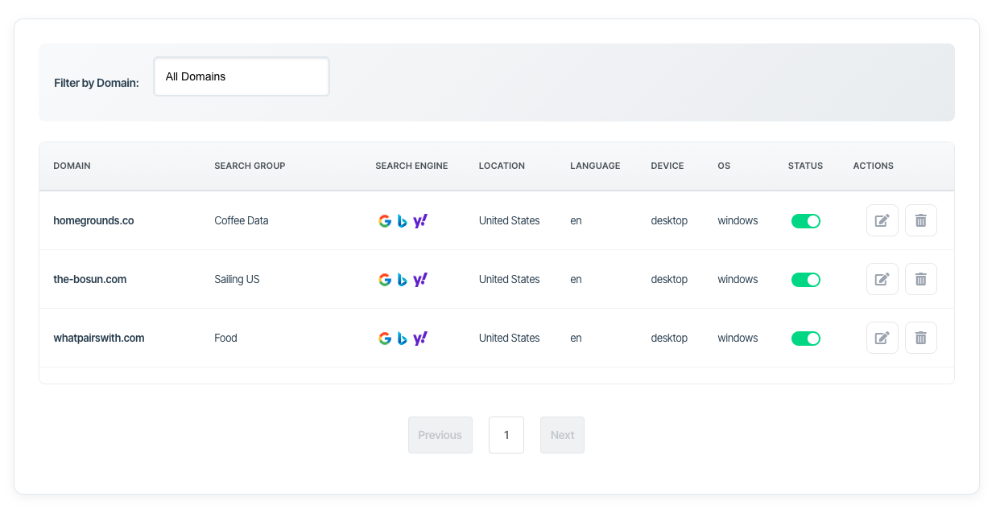
The Search Configuration page displays all active and paused search groups in a table. Each row represents a unique tracking configuration.
| Column | Description |
| Domain | The website being tracked |
| Search Group | The name given to this configuration |
| Search Engine | Google, Bing, or Yahoo icons showing which engines are tracked |
| Location | Geographic location for ranking checks |
| Language | Language code used for searches |
| Device | Desktop or Mobile |
| OS | Operating system (Windows, Mac, Android, iOS) |
| Status | Toggle to enable or disable tracking |
| Actions | Edit or delete the configuration |
What should I do next?
The right action depends on tracking needs:
| Situation | Action |
| New domain added | Create a search configuration to start tracking keywords |
| Need different location | Create a new configuration with the target location |
| Track mobile rankings | Create a configuration with Device set to Mobile |
| Pause tracking temporarily | Use the Status toggle to disable (data is preserved) |
| Remove tracking permanently | Click Delete (warning: historical data is removed) |
| Change keywords tracked | Click Edit and adjust the keyword selection |
Creating a search configuration
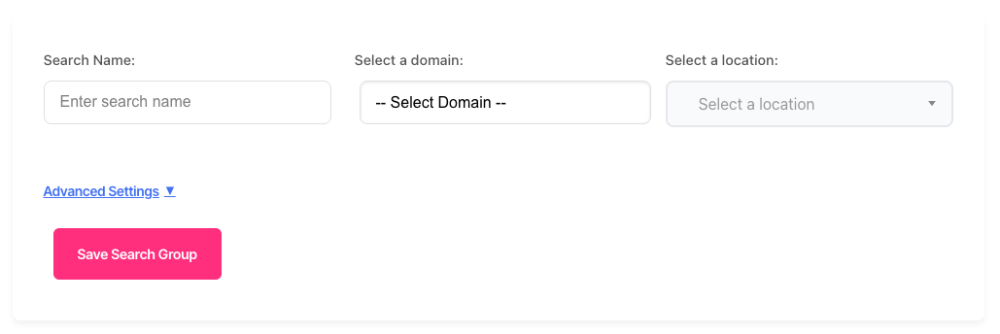
The form at the top of the page creates new search configurations. Required fields include domain, search name, and location.
Basic settings
| Field | Purpose |
| Domain | Select the website to track |
| Search Name | A descriptive name (appears in reports and filters) |
| Location | Type to search—results appear after 3 characters |
Advanced settings
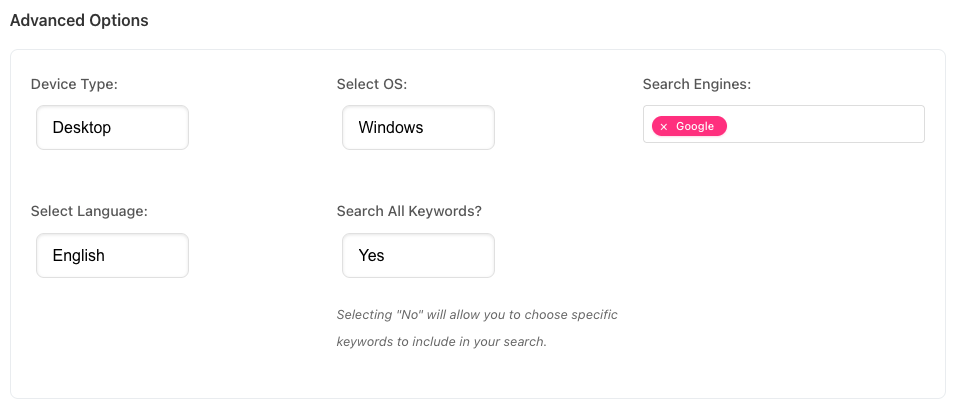
Click Advanced Settings to expand additional options:
| Field | Purpose | Default |
| Device Type | Desktop or Mobile ranking checks | Desktop |
| OS | Operating system for the check | Windows (Desktop) / Android (Mobile) |
| Search Engines | Select one or more: Google, Bing, Yahoo | |
| Language | Language code for searches | English (en) |
| Search All Keywords | Track all keywords or select specific ones | Yes |
Selecting specific keywords
When Search All Keywords is set to No, a keyword table appears. Use the filters to find keywords, then toggle individual keywords on or off. The master toggle at the top affects all visible keywords.
Managing configurations
Enabling and disabling
The Status toggle pauses or resumes tracking. Disabling preserves all historical data—ranking checks simply stop until re-enabled. This is useful when temporarily pausing a campaign or reducing credit usage.
Editing
Click the Edit icon to modify a configuration. The search name cannot be changed (it serves as an identifier), but all other settings can be updated. Changes take effect on the next scheduled check.
Deleting
Click the Delete icon to remove a configuration permanently. A confirmation dialog appears because this action deletes all associated ranking history. If historical data needs preserving, disable the configuration instead.
Using filters
The domain filter at the top of the table narrows the list to configurations for a specific website. This is helpful when managing multiple domains within a workspace.
Troubleshooting
No domains available
The domain dropdown is empty or shows "No domains in this workspace". Check that domains have been added to the current workspace. Switch workspaces using the header dropdown if needed.
Insufficient credits message
Creating a configuration requires credits based on keyword count and search engines selected. Check account balance in settings and add credits if needed, or reduce the number of keywords or search engines.
Location search returns no results
Type at least 3 characters for location search to work. Try broader terms (country name instead of city) or check spelling.
Configuration saved but no rankings appear
Rankings typically appear within 24 hours of creating a configuration. Check the Status toggle is enabled. Verify keywords exist for the selected domain.
FAQ
How many search configurations can be created?
There is no limit on configurations. Each configuration consumes credits based on the number of keywords and search engines tracked.
Can the same keywords be tracked in multiple configurations?
Yes. This is common when tracking the same keywords across different locations, devices, or search engines. Each configuration generates separate ranking data.
What happens to data when a configuration is disabled?
All historical data is preserved. Ranking checks stop, but existing data remains accessible in reports. Re-enabling resumes tracking from that point.
How often are rankings checked?
Rankings are typically checked daily. Exact timing depends on account configuration and keyword volume.
Why do desktop and mobile rankings differ?
Search engines serve different results based on device type. Mobile results often prioritise mobile-friendly sites and local results. Tracking both provides a complete picture.
Getting help
Contact support for persistent issues